
Using the USB interface of the MOBOTIX camera, it is possible to connect the frogLink Bluetooth LE USB stick as a serial FTDI interface so as to establish communication with the frogblue components.
The first part of the instructions that follow describes correct connection of the frogLink and configuration of the serial interface.
In the second part, some scenarios are described using example configurations.
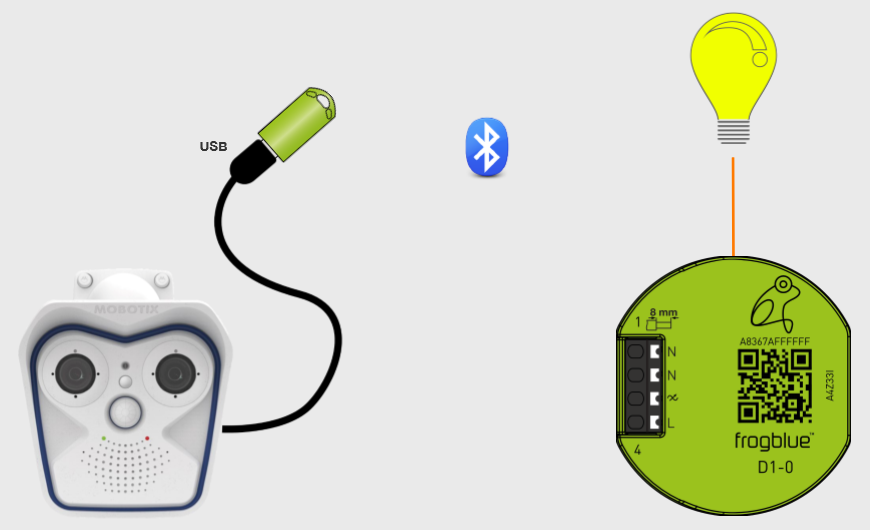
1. frogLink connection
Admin Menu -> Hardware Configuration -> Manage Hardware Extensions

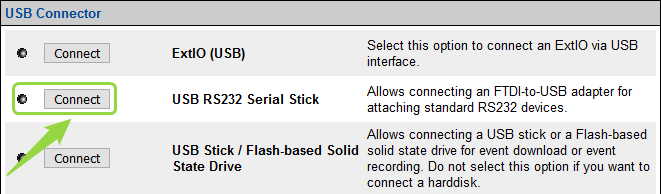
Do not connect frogLink to the USB cable of the MOBOTIX camera until instructed!
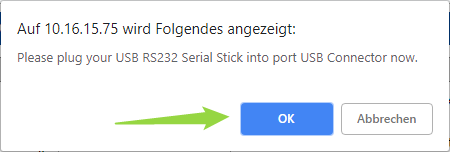
Connection successful ->
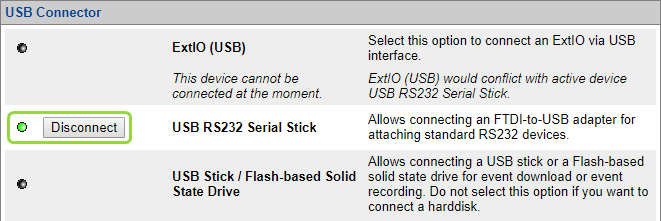
Save permanently and restart!
2. Serial interface configuration
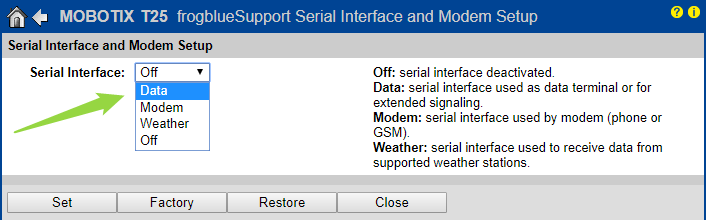
Admin Menu -> Serial Interface

Select “Data” operating mode
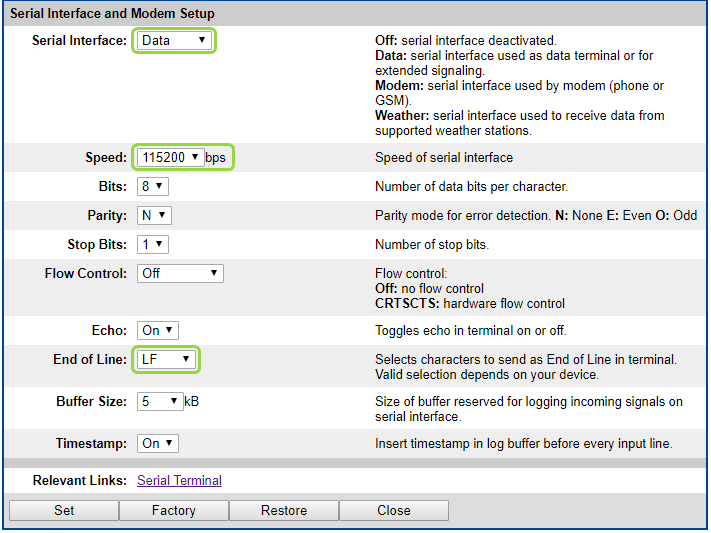
3. Serial Interface settings
| Setting | Value | | | | | Serial Interface | Data | | Transmission speed | 115200 bps | | Line end character | LF |
Permanent storage and restart
4. Terminal
Admin Menu -> Serial Interface

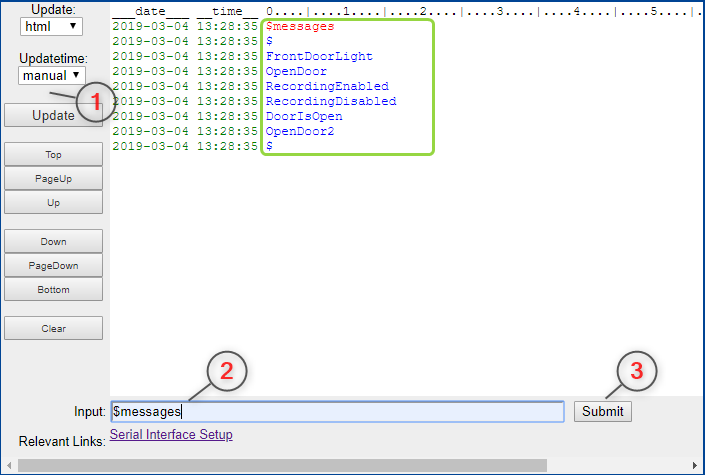
$ – Requests allow you to retrieve details of messages, rooms and project information available.
The request $message or $messages produces a list of all messages parameterised on the frogLink.
All listed messages can be executed by entering the message name.
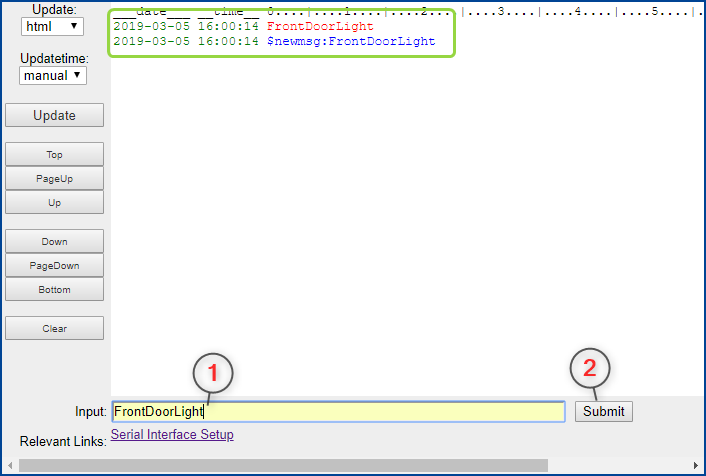
Messages with optional parameters (in parentheses) can also be executed ->
FrontDoorLight(time=15s,bright=85)
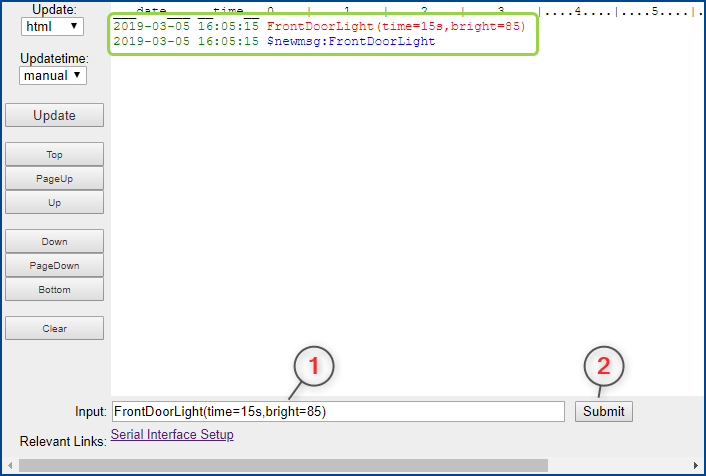
Parameters available
| Parameter | Meaning | | | | | ON | Instead of switching the current state, the outputs are switched on. | | time | The outputs are switched on for this time. (s = seconds, m = minutes, h = hours) | | bright | Dimming value of the output (if possible) |
Example Scenarios
- Activate or deactivate recording using frogKey
- Recording at door opening using frogEntry2-3 and additional light input Switch with frogDim1-3
- Open door with pin on MX keypad and additionally with frogKey
A prerequisite for these scenarios is that the frogLink of the respective MOBOTIX camera is correctly parameterised and connected to the USB interface.
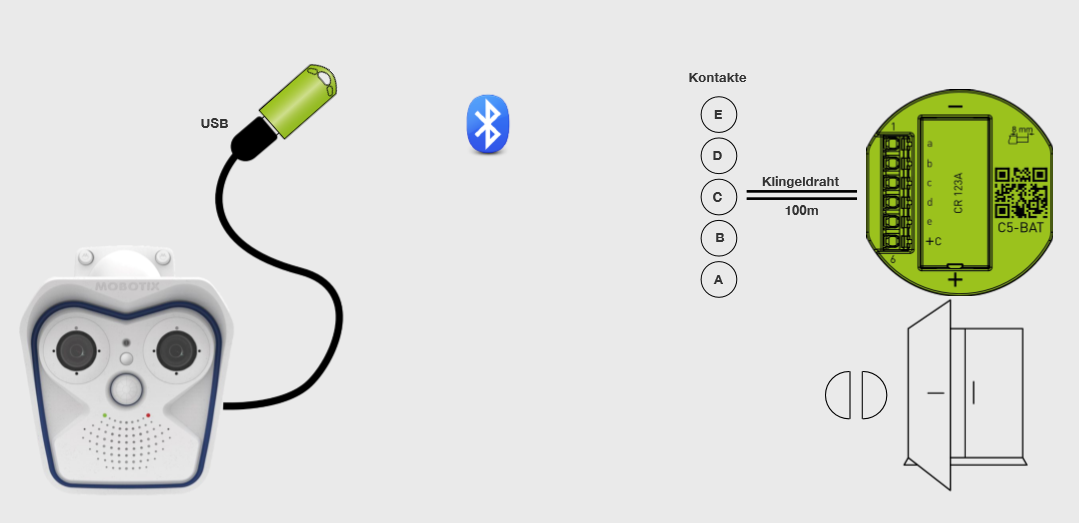
Scenario 1: Activate and deactivate recording using frogKey
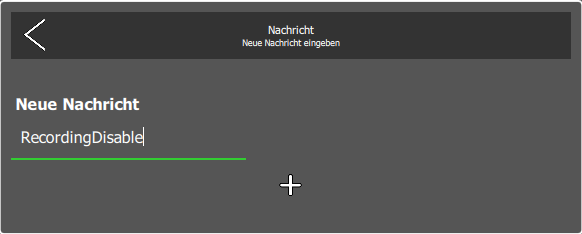
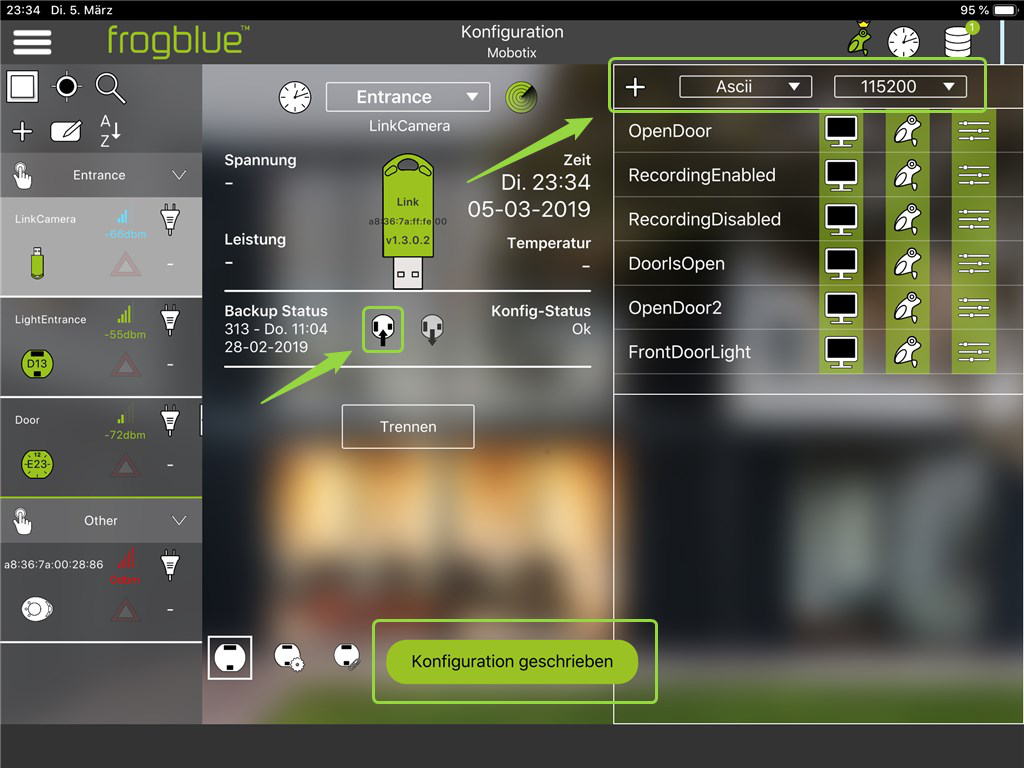
- Create two messages “RecordingEnable” and “RecordingDisable” and write the altered configuration to the frogLink.
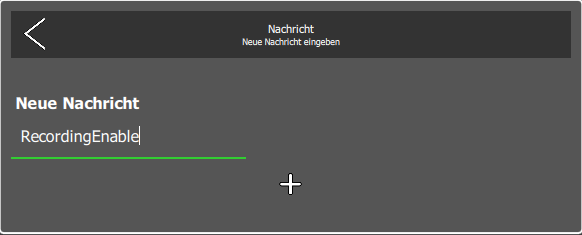
- Parameterise frogKey
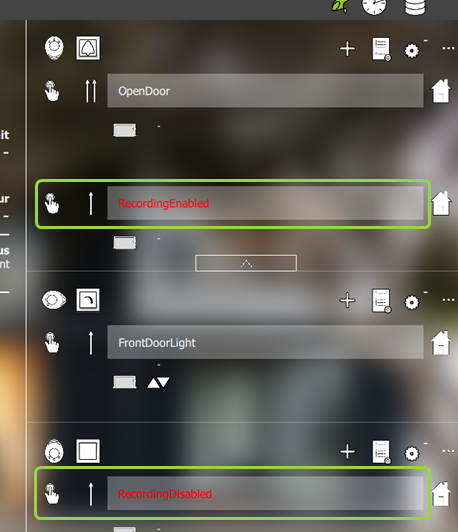
One click upwards -> recording is activated
One click downwards -> recording is deactivated
- MOBOTIX-camera configuration
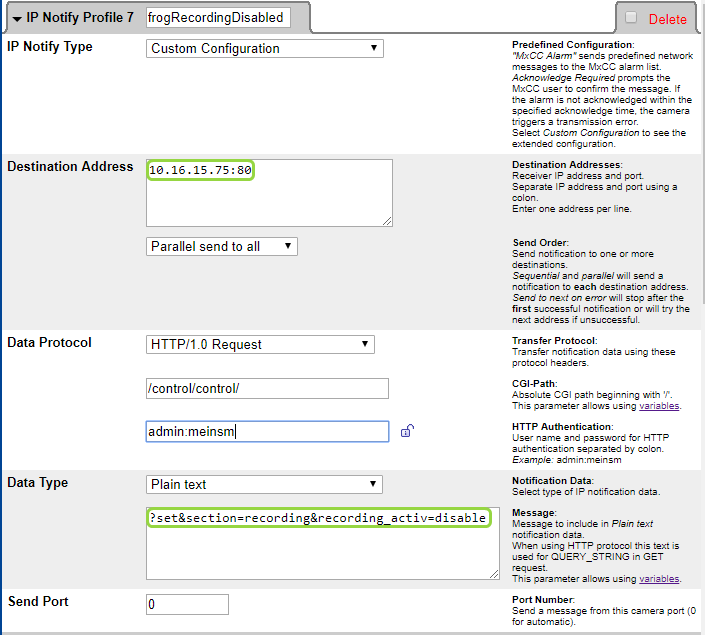
Create two network messages ->
Admin Menu -> Transfer Profiles -> Profiles for Network Messages
Example Profile 8 (frogRecordingEnabled):
IP Notify Type      = Custom Configuration
Destination Address = 10.16.15.75:80  (Parallel send to all)
Data Protocol       = HTTP/1.0 Request
                      /control/control/
                      admin:meinsm
Data Type           = Plain text
                      ?set&action=recording&recording_active=enable
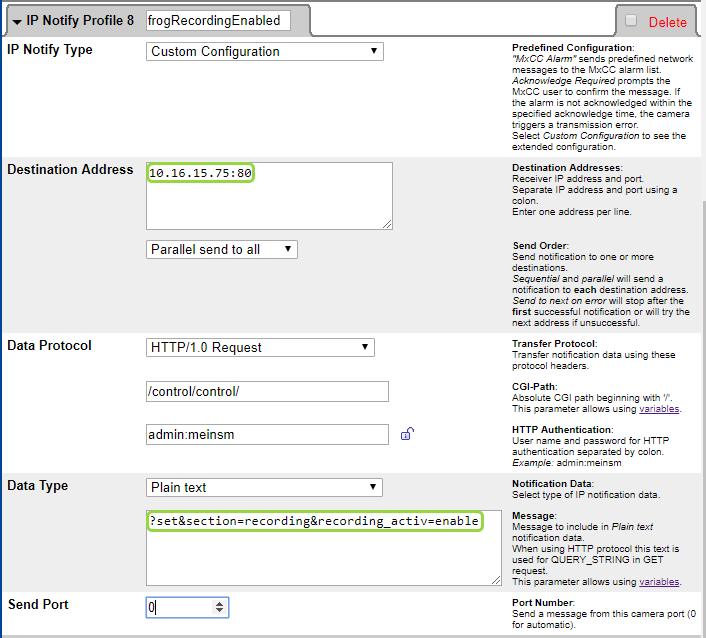
Example Profile 7 (frogRecordingDisabled) analogously with ?set&action=recording&recording_active=disable:
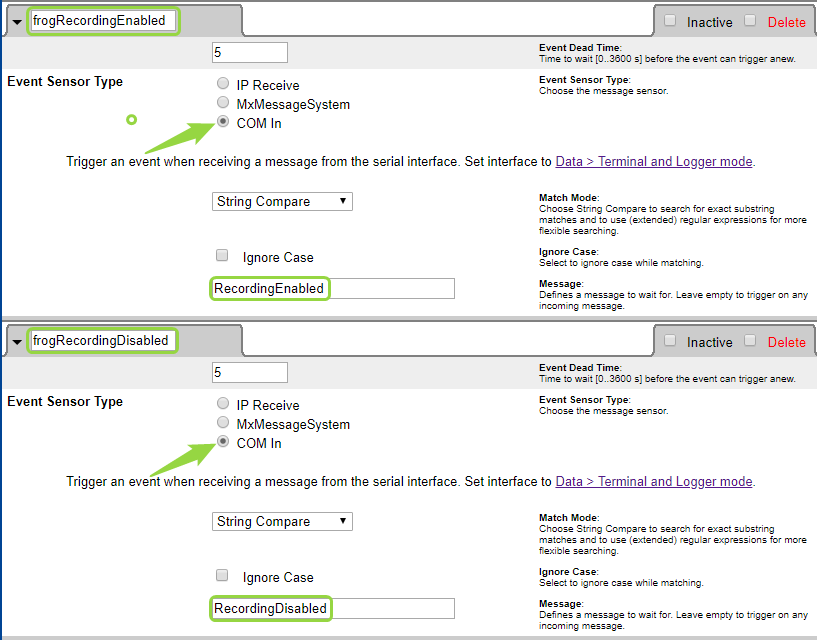
Create two message events ->
Setup Menu -> Event Control -> Event Overview -> Message Events
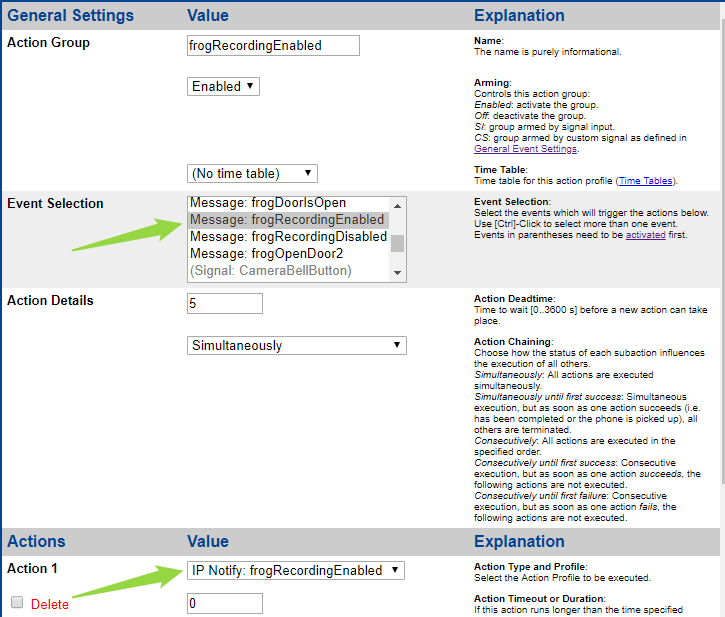
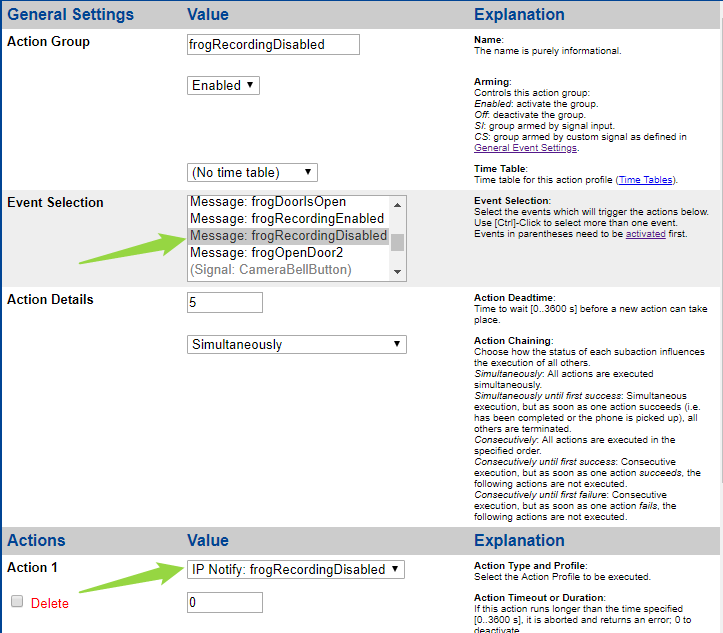
Create two action groups ->
Setup Menu -> Event Control -> Action Groups Overview
Save permanently and restart.
Recording is now activated with one click upwards, or deactivated by one click downwards.
Scenario 2: Recording at door opening using frogEntry2-3 and additional light input Switching with frogDim1-3
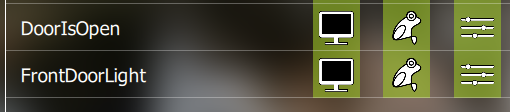
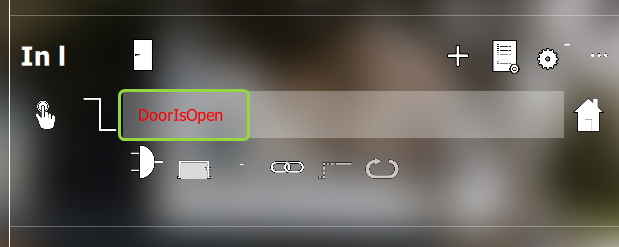
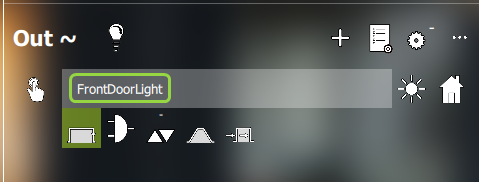
- Create two messages “DoorIsOpen” and “FrontDoorLight” in frogLink.
Door contact is connected to input 1 of frogEntry2-3.
Light input is connected to the output of frogDim1-3.
- MOBOTIX-camera configuration
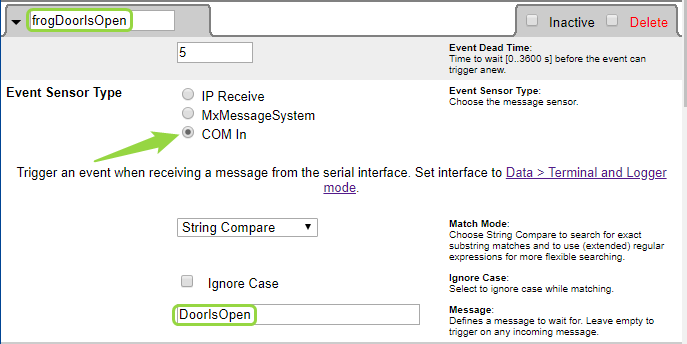
Create message event ->
Setup Menu -> Event Control -> Event Overview -> Message Events
Create network message ->
Admin Menu -> Transfer Profiles -> Profiles for Network Messages
CGI-path =
/control/rcontrol?action=PutRS232&rs232outtext=FrontDoorLight(time=10s;bright=75)
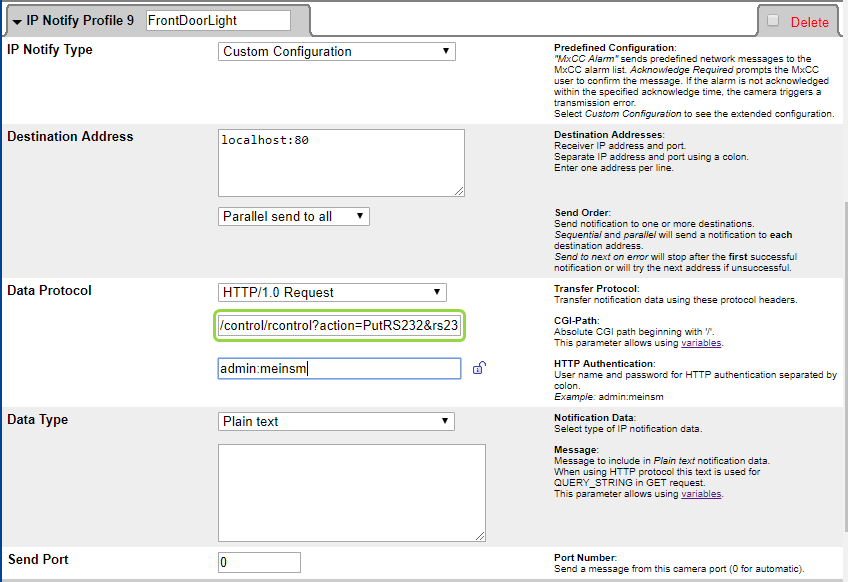
Create action group ->
Setup Menu -> Event Control -> Action Groups Overview
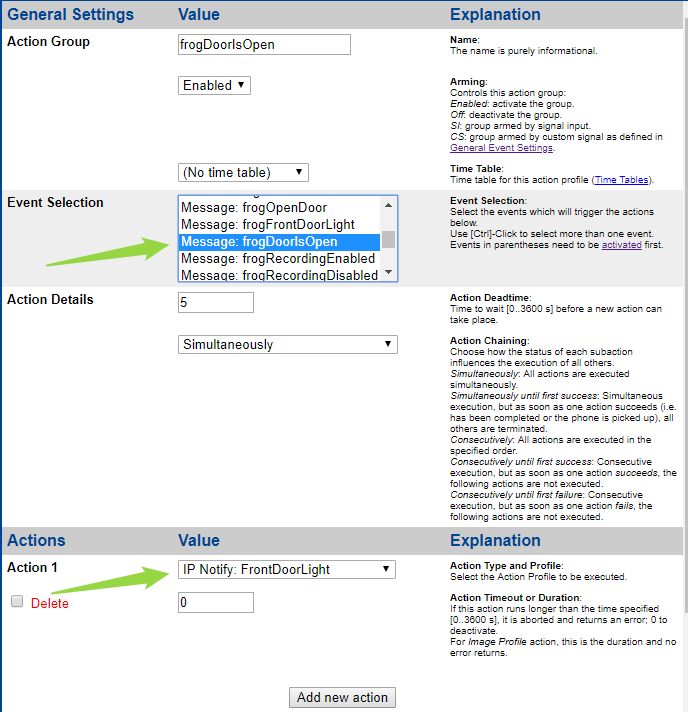
Activate recording on door opening ->
Setup Menu -> Event control -> Recording
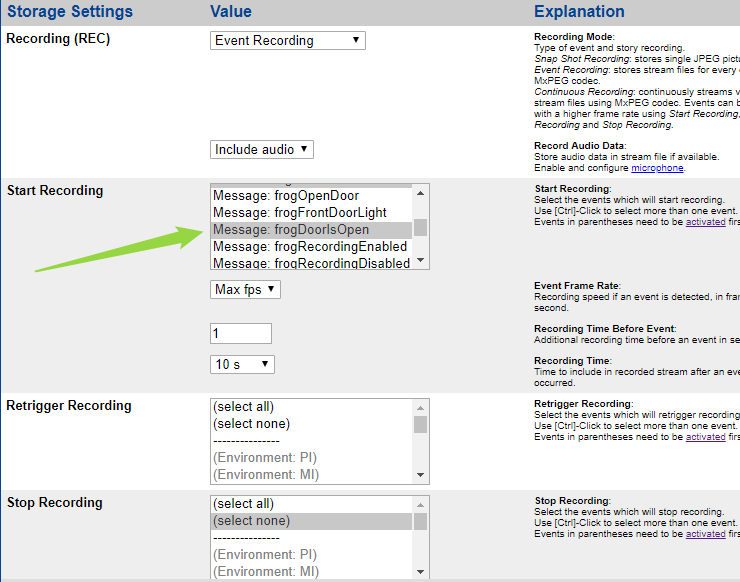
If the entrance door is now opened, the camera recording and the light are switched on.
Scenario 3: Open door with a pin on the MX keypad and additionally with frogKey
- Parameterise frogKey and frogLink ->
Create message in frogKey
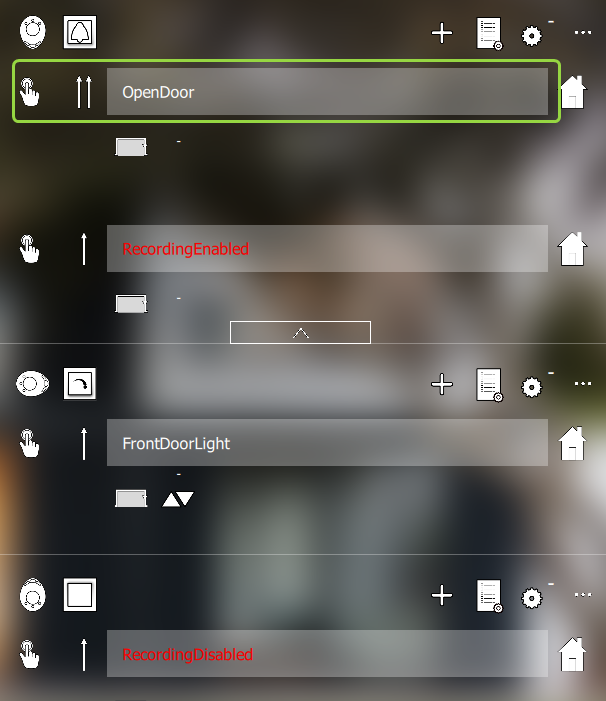
Create message in frogLink and write configuration
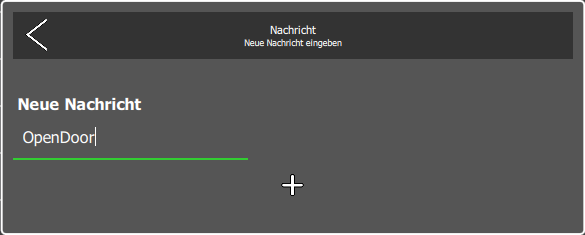
- MOBOTIX-camera configuration
Create message event ->
Setup Menu -> Event Control -> Event Overview -> Message Events
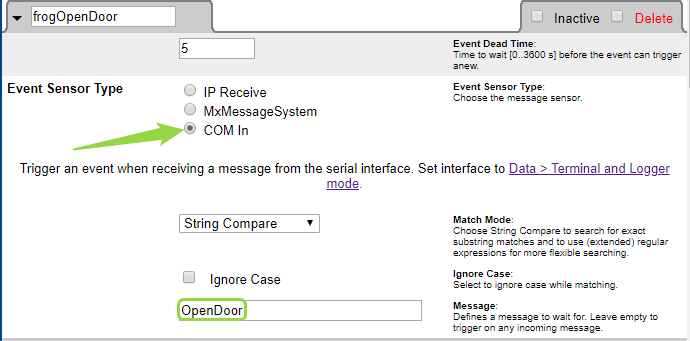
Create action group ->
Setup Menu -> Event Control -> Action Groups Overview
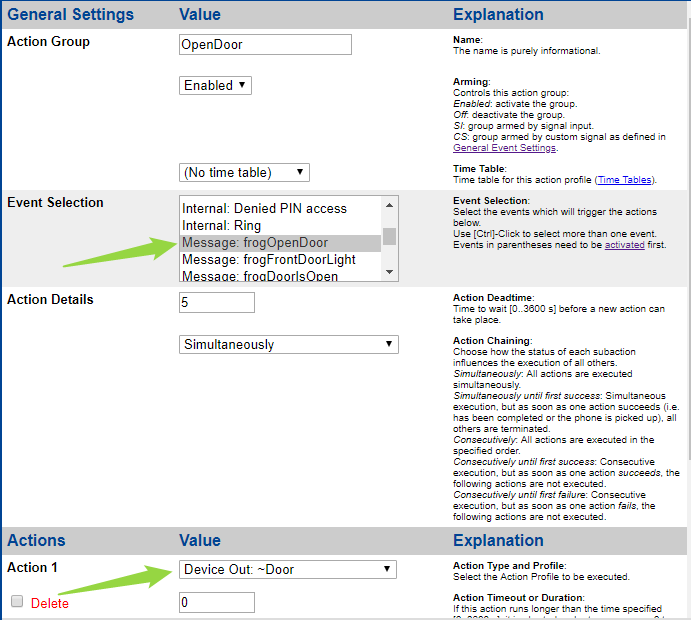
The door now opens when you click twice upwards.