

This document describes the usage of the frogLink as a serial USB-Gateway in the operation mode called “Text Mode”. In the Text Mode all commands used in the frogblue system can be received and transmitted via the frogLink as ASCII characters to be processed further on the connected device.
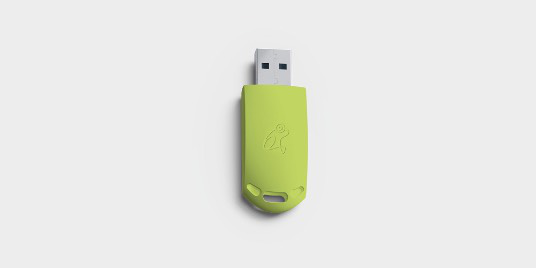
The following features are supported:
- Transmit and receive as plain ASCII characters (plain text)
- Transmit and receive as JSON ASCII characters (JSON format)
- Transmit and receive control messages (e.g. switch light on)
- Transmit and receive control status messages (e.g. status is night)
- Transmit status information of output channels (e.g. light is set to 69% dim value)
A second operating mode is the so called frogblue mode, where the frogLink is used as a configuration interface on a Microsoft Windows® system. This mode is described in the frogblue manual and is not part of this document.
Disclaimer
This document is provided by frogblue AG; frogblue AG reserves all rights for the document. frogblue AG assumes no liability for indirect, direct or accidental damage or consequential losses occurring as a result of using this document. All information published in the document is given to the best of frogblue AG knowledge. In so far as permissible by law, however, none of this information shall establish any guarantee, commitment or liability by frogblue AG.
frogblue AG can, at their own discretion and without any assumption of liability, amend this document in full or in part at any time, without prior notice.
Author: Jens Wirok — V1.2 • May 2023
Change log (document)
| Date | Document version | Supported frogware version | API-Version |
|---|---|---|---|
| 2021-03-03 | V1.0 Initial Version | 1.7.3.x | undefined |
| 2023-03-03 | V1.1 | 1.8.x | 2.0 |
| 2023-05-02 | V1.2 | 1.8.x | 2.0 |
1. Definition of terms
Communication via the serial interface is in ASCII encoded text, either in plain text or in JSON format. Both can be used simultaneously, but it is recommended to choose one of the two formats.
| Term | Definition |
|---|---|
| message | General term for commands and information sent within the frogblue system. |
| control message | Message sources, e.g. inputs, generate control messages which are received by e.g. outputs of frogblue devices. Depending on the configuration, different actions can be performed at the output. To use control messages, they have to be configured for the frogLink with the frogblue ProjectApp. |
| standard status message | Messages containing system state information like output states, temperatures, or other sensor values. They are not directly related to control messages, as the output can be controlled by different messages. |
| control status messages | Special type of commands which are automatically repeated by the frogblue devices (normally used for status information like „Night", „Wind", etc.). Used to set logical gates in the system. |
| frogware | Software used in frogblue devices |
| device network address | A unique identifier within the project corresponding to each individual device. The device network address is assigned by the frogblue ProjectApp. The device address will change if a device is configured to a new room/area. The device network address is documented in the CSV export of the device manager. |
2. Settings of serial interface
The following settings must be applied to the serial interface:
| Setting | Value |
|---|---|
| Type | Text |
| Data rate | 115200 Baud |
| Bits | 8 |
| Parity | None |
| Stop Bits | 1 |
| Flow control | Off or None |
| Echo | Off |
| End of line | LineFeed (LF) |
Set the baud rate
The rate can be adjusted within a range of 1200 to 115200 Baud, if necessary.
Command (plain text):
$asc(xxx)
Response:
$asc:OK
$rebooted
Command (JSON format):
{"cmd":"asc","baud":xxx}
Response:
{"asc":"ok","baud":"115200"}
{"err":"rebooted"}
3. Commands in plain text
3.1. General commands
3.1.1. Request project information
Receiving information about the project, as in name of the project, software version, date and time of configuration, etc.
Command:
$project
Response:
$
Project=frogblueHeadquater       --> Project name
frogLinkName=frogInterface       --> Configured device name of frogLink
frogLinkRoom=ServerRoom          --> Configured location (room) of frogLink
frogLinkBuilding=                --> Configured location (building) of frogLink (not used yet)
SW-Version=1.7.0.4               --> frogware currently installed on the frogLink
Config=09.07.2020 14:45:32       --> Date and time of the frogLink configuration
Address=A8:36:7A:00:1D:C2        --> Bluetooth MAC address of frogLink
NetID=190                        --> Network ID of the project
$
3.1.2. Request available messages
Request the list of control messages configured in the frogLink. Only these messages can be sent and received. Sending and receiving can be enabled individually with the frogblue ProjectApp.
Command:
$message / $messages
Response:
$
CeilingLight
ShutterEast-Pos
ShutterEast
ShutterEast-Up
RingMainDoor
OpenMainDoor
$
3.1.3. Request available rooms
Request the list of rooms configured in the frogLink. Only these rooms can be individually addressed with type messages.
Available rooms are configured with the frogblue ProjectApp.
Command:
$room / $rooms
Response:
$
LivingRoom
Kitchen
Children
$
3.1.4. Request available types
Request the list of type messages configured in the frogLink. Only these type messages can be sent.
Available types are configured with the frogblue ProjectApp.
Command:
$type / $types
Response:
$
Light
Shutter
ShutterUp
OpenDoor
$
3.1.5. Combine requests
Requests for rooms and types can be combined to receive the available types in a specific room.
Command:
$types(room=Kitchen)
Response:
$
Light
Shutter
$
3.1.6. Enable receiving messages in plain text
Receiving messages in plain text is activated by default and will be restored during a factory reset / software update.
Without receiving messages enabled, it is not possible to receive any messages from the frogblue system in plain text, but it is possible to send commands to the system.
This is independent from enabling/disabling receiving in JSON format.
Command:
$msgenable
Response:
$msgenable=true
3.1.7. Disable receiving messages in plain text
Command:
$msgdisable
Response:
$msgenable=false
3.1.8. Enable receiving status messages in plain text
Receiving of standard and control status messages in plain text is disabled by default and will be restored during a factory reset / software update.
To receive status messages, reception of messages itself must be enabled (see Enable receiving of messages in plain text).
This is independent from enabling/disabling receiving in JSON format.
Command:
$statusenable
Response:
$statusEnabled=true
3.1.9. Disable receiving status messages in plain text
Command:
$statusdisable
Response:
$statusEnabled=false
3.2. Send messages
3.2.1. Send control messages
Control messages are sent just by transmitting the message name (e.g. “CeilingLight”). Usually, the message will be a toggle (an output which is off will switch on and an output which is on will switch off).
The control message can be combined with other parameters (e.g. switching on or off regardless of the current output state, switching on for a specified time or the setting brightness), if supported by the receiving device.
The following parameters are available:
| Parameter | Description |
|---|---|
| ON | switches the output on, regardless of the current state |
| OFF | switches the output off, regardless of the current state |
| time | specifies how long the output should be switched on; available units: s (seconds), m (minutes), h (hours) |
| bright | sets the dimming value for the output between 0 and 100; if not defined, the last set dim value is used |
The order of the parameters is not relevant.
The response received is the message sent by the frogLink and does not reflect the state of the output!
Example message “CeilingLight”
Command ‘Toggle’:
CeilingLight
Response:
$CeilingLight(255,255,0)
Command ‘Switch on’:
CeilingLight(ON)
Response:
$CeilingLight-Value(255,255,0)
Command ‘Switch off’:
CeilingLight(OFF)
Response:
$CeilingLight-Value(0,255,0)
Command ‘Switch on for 5 minutes’:
CeilingLight(ON,time=5m)
Response:
$CeilingLight-Value(255,255,5m)
Command ‘Toggle and if turned on, remain on for 5 minutes’:
CeilingLight(time=5m)
Response:
$CeilingLight(255,255,5m)
Command ‘Toggle with dim value 40%’:
CeilingLight(bright=40)
Response:
$CeilingLight(40,255,0)
Command ‘Switch on with dim value 40%’:
CeilingLight(ON,bright=40)
Response:
$CeilingLight-Value(40,255,0)
Command ‘Switch on for 5 minutes with dim value 40%’:
CeilingLight(ON,time=5m,bright=40)
Response:
$CeilingLight-Value(40,255,5m)
Command ‘Toggle with dim value 40% and if turned on, remain on for 5 minutes’:
CeilingLight(time=5m,bright=40)
Response:
$CeilingLight(40,255,5m)
3.2.2. Send shutter control messages
Control messages to control shutter outputs are slightly different from regular control messages, due to the possibility to set shutter and slats positions.
Shutter up and position are separate messages that must be configured on the frogLink with the frogblue ProjectApp.
The response received is the message sent by the frogLink and does not reflect the state of the output!
Example message “ShutterEast”
Command ‘Shutter down’ (when shutter is moving, the command will stop the shutter):
ShutterEast
Response:
$ShutterEast(255,255,0)
Command ‘Shutter up’ (when shutter is moving, the command will stop the shutter):
ShutterEast-Up
Response:
$ShutterEast-Up(255,255,0)
Command ‘Shutter to position 30% down’:
ShutterEast-Pos(pos=30)
Response:
$ShutterEast-Pos(30,255,0)
Command ‘Shutter to position 70% down and slats position 50%’:
ShutterEast-Pos(pos=30,slats=50)
Response:
$ShutterEast-Pos(30,50,0)
Command ‘Slats position 80%’:
ShutterEast-Pos(slats=80)
Response:
$ShutterEast-Pos(255,80,0)
3.2.3. Request output information of devices
Command to request the current dim value of an output channel. Feedback can only be received if $statusenable is set.
Currently only type=bright is implemented and can also be used to receive shutter positions.
The response received is the current output state of the device:
$status(type=bright,target=XXXX,output=Y)
Where “XXXX” is the device network address as hexadecimal value and “Y” is the output channel:
$status(type=bright,target=0x0083,output=A)
Response:
$status(source=0x0083,output=A,value=70%)
3.2.4. Send control status messages
Command to set a specific control status (e.g. Night) in the frogblue system. The control status is used to set logical gates to allow different behavior under different conditions. For example, the lights should switch on with different dim value at night, or the corridor light should switch on automatically if it is night and the door is open.
Control status messages need to be repeated at least every 7 minutes as the logical gate requires an update of the status after 8 minutes (recommended repeat time: 4-6 minutes).
The logical gates must be defined with the frogblue ProjectApp.
Example message ‘“Night” true’:
Night(true)
Response:
$cStatus(Night,1,x,x)
Example message ‘“Night” false’:
Night(false)
Response:
$cStatus(Night,0,x,x)
3.3. Receive messages
3.3.1. Receive control messages
Parameters, that are transmitted with the message, are added in brackets after the message name.
Example message ‘“CeilingLight” toggle with last dim value’:
CeilingLight(255,255,0)
Example message ‘“CeilingLight” toggle with 100% dim value’:
CeilingLight(100,0,0)
Example message ‘“CeilingLight” toggle 50% for 5 minutes’:
CeilingLight(50,255,5m)
3.3.2. Receive standard status messages
Standard status messages are sent on a periodical bases by the devices and on output status change.
They can only be received if $statusenable is set.
Example messages ‘device 0x0083, output A turned on with 70% dim value’:
$status(source=0x0083,output=A,value=1)
$status(source=0x0083,output=A,value=70%)
Example message ‘device 0x0083 output A at 70% dim value’ (repeated every 8 minutes):
$status(source=0x0083,output=A,value=70%)
3.3.3. Receive standard status messages from shutters
Standard status messages from shutters are sent by the devices on a periodical basis and on change.
They can only be received if $statusenable is set.
Example messages ‘device 0x0101 shutter is moving’:
$status(source=0x0101,output=A,value=1)
or
$status(source=0x0101,output=B,value=1)
Example message ‘device 0x0101 shutter at 40% closed and slats fully closed’ (repeated every 8 minutes):
$status(source=0x0101,output=A,pos=40%,slats=100%)
$status(source=0x0101,output=B,pos=40%,slats=100%)
3.3.4. Receive standard status messages from sensors
Devices with environmental sensors (e.g. temperature/brightness/humidity) send standard status messages on a periodical basis.
They can only be received if $statusenable is set.
Example message frogMultiSense ‘device 0x0083’:
$status(source=0x0083,temp=21.4C,reed0=1,reed1=1,reed2=1,reed3=1,humidity=31%,bright=10lux))
$status(source=0x0083,airpressure=989mbar)
3.3.5. Receive control status messages
Control status messages are sent every 1-8 minutes, depending on the configuration of the system.
Example message ‘“Night” true’:
$cstatus(Night,1,x,x)
Example message ‘“Night” false’:
$cstatus(Night,0,x,x)
3.3.6. Receive heating output status messages
Heating status messages are sent every 4 minutes or upon status change of the heating device.
Example message from frogBoxHeat:
{„newMsg":null,"type":"sStatus","source":"18A2","channels":"10000100000"}
“Channels” displays the heating/cooling status of the channels as boolean (true or false) values. The values do not reflect the output status open/closed, as normally open or normally closed valves can be used.
The boolean values have no direct reference to the physical outputs, but represent the order of configuration in the frogblue ProjectApp.
The first boolean value is the first entry created in the ProjectApp, the second boolean value is the second entry, and so on.
In the example the first and the sixth channel are currently heating/cooling.
3.3.7. Receive heating status messages
Heating status messages are sent every 4 minutes or upon status change from the heating devices.
Example message from frogBoxHeat:
$status(source=0x18A2,channel=8,temp=21.5C,offset=0C,day=1,cooling=0,accept=1,others=0,night=1,mode=0)
| Field | Description |
|---|---|
| channel | channel number (order as configured in frogblue ProjectApp) |
| temp | desired temperature in degree celsius incl. offset |
| offset | offset in degree celsius |
| day | false → night mode; true → day mode |
| cooling | 0 → cooling mode OFF; 1 → cooling mode ON |
| accept | false → device does not allow control; true → device allows control |
| others | false → other devices can not control; true → other devices can control |
| night | false → do not allow night from window state; true → allow night from window |
| mode | false → normal mode; true → special mode (e.g. party, away, holiday) |
4. Commands in JSON format
4.1. General commands
4.1.1. Request project information
Receiving information about the project, as in name of the project, software version, date and time of configuration, etc.
Command:
{"cmd":"project"}
Response:
{
    "project":"frogblueHeadquater",
    "frogLinkName":"frogInterface",
    "frogLinkRoom":"ServerRoom",
    "frogLinkBuilding":"",
    "SW-Version":"1.7.0.4",
    "Config":"09.07.2020 14:45:32",
    "Address":"A8:36:7A:00:1D:C2",
    "NetID":"190",
    "API":"2.0"
}
| Key | Description |
|---|---|
| project | Project Name |
| frogLinkName | Configured device name of frogLink |
| frogLinkRoom | Configured location (room) of frogLink |
| frogLinkBuilding | Configured location (building) of frogLink |
| SW-Version | frogware currently installed on frogLink |
| Config | Date and time of the frogLink configuration |
| Address | Bluetooth-MAC address of frogLink |
| NetID | Network ID of the project |
| API-Version | Version of API Interface |
4.1.2. Request available messages
Request the list of control messages configured in the frogLink. Only these messages can be sent and received.
Sending and receiving can be enabled individually with the frogblue ProjectApp.
Command:
{"cmd":"messages"} / {„cmd":"message"}
Response:
{
    "message":
        [”CeilingLight”,"ShutterEast-Pos","ShutterEast","ShutterEast-Up","RingMainDoor","OpenMainDoor"]
}
4.1.3. Request available rooms
Request the list of rooms configured in the frogLink. Only these rooms can be individually addressed with type messages.
Available rooms are configured with the frogblue ProjectApp.
Command:
{"cmd":"rooms"} / {„cmd":"room"}
Response:
{
    "rooms":
        ["LivingRoom","Kitchen","Children"]
}
4.1.4. Request available types
Request the list of type messages configured in the frogLink. Only these types can be sent.
Available types are configured with the frogblue ProjectApp.
Command:
{"cmd":"types"}
Response:
{
    "types":
        ["Light","Shutter","ShutterUp","OpenDoor"]
}
4.1.5. Combine requests
Requests for rooms and types can be combined to receive the available types in a specific room.
Command:
{"cmd":„types","room":"Kitchen"}
Response:
{
    "types":
        ["Light","Shutter"]
}
4.1.6. Enable receiving messages in JSON format
Receiving messages in JSON format is activated by default and will be restored during a factory reset / software update.
Without message receiving enabled it is not possible to receive any messages from the frogblue system in JSON format, but it is possible to send commands to the system.
This is independent from enabling/disabling receiving in plain text.
Command:
{"cmd":"msgenable","enabled":true}
Response:
{
    "msgEnabled":true
}
4.1.7. Disable receiving messages in JSON format
Command:
{"cmd":"msgenable","enabled":false}
Response:
{
    "msgEnabled":false
}
4.1.8. Enable receiving status messages in JSON format
Receiving of standard and control status messages in JSON format is disabled by default and will be restored during a factory reset / software update.
To receive status messages, receiving of messages must be enabled generally (see Enable receiving of messages in JSON format).
This is independent from enabling/disabling receiving in plain text.
Command:
{"cmd":"statusenable","enabled":true}
Response:
{
    "statusEnabled":true
}
4.1.9. Disable receiving status messages in JSON format
Command:
{"cmd":"statusenable","enabled":false}
Response:
{
    "statusEnabled":false
}
4.2. Send messages
4.2.1. Send control messages
Control messages are sent by transmitting the message name (e.g. ”CeilingLight" [string]). Usually, the message will be a toggle (an output which is off will switch on and an output which is on will switch off).
The control message can be combined with other parameters (e.g switch on or off regardless of the current output status, switch on for a specified time or set brightness to a percentage value), if supported by the receiving device.
The following parameters are available:
| Parameter | Description |
|---|---|
| “on”:true | switches the output on, regardless of the current state [boolean] |
| “on”:false | switches the output off, regardless of the current state [boolean] |
| “time” | specifies how long the output should be switched on [string] |
| “bright” | sets the dimming value for the output from 0 to 100 [integer]; If not defined the last set dim value is used |
The order of the parameters is not relevant.
The response received is the message sent by the frogLink and does not reflect the state of the output!
Example message “CeilingLight”
Command ‘Toggle’:
{"msg":"CeilingLight"}
Response:
{
    ”newMsg":"CeilingLight",
    ”p0":255,
    ”p1":255,
    ”p2":0
}
Command ‘Switch on’:
{"msg":"CeilingLight","on":true}
Response:
{
    ”newMsg":"CeilingLight-Value",
    ”p0":255,
    ”p1":255,
    ”p2":0
}
Command ‘Switch off’:
{"msg":"CeilingLight","on":false}
Response:
{
    ”newMsg":"CeilingLight-Value",
    ”p0":0,
    ”p1":255,
    ”p2”:0
}
Command ‘Switch on for 5 minutes’:
{"msg":"CeilingLight","on":true,"time":"5m"}
Response:
{
    ”newMsg":"CeilingLight-Value",
    ”p0":255,
    ”p1":255,
    ”p2":"5m"
}
Command ‘Toggle and if turned on, remain on for 5 minutes’:
{"msg":"CeilingLight","time":"5m"}
Response:
{
    ”newMsg":"CeilingLight",
    ”p0":255,
    ”p1":255,
    ”p2":"5m"
}
Command ‘Toggle with dim value 40%’:
{"msg":"CeilingLight","bright":40}
Response:
{
    ”newMsg":"CeilingLight",
    ”p0":40,
    ”p1":255,
    ”p2":0
}
Command ‘Switch on with dim value 40%’:
{"msg":"CeilingLight","on":true,"bright":40}
Response:
{
    ”newMsg":"CeilingLight-Value",
    ”p0":40,
    ”p1":255,
    ”p2":0
}
Command ‘Switch on for 5 minutes’ with dim value 40%:
{"msg":"CeilingLight","time":"5m","on":true,"bright":40}
Response:
{
    ”newMsg":"CeilingLight"-Value,
    ”p0”:40,
    ”p1":255,
    ”p2":"5m"
}
Command ‘Toggle with dim value 40% and if turned on, for 5 minutes’:
{"msg":"CeilingLight","bright":40,"time":"5m"}
Response:
{
    ”newMsg":"CeilingLight",
    ”p0”:40,
    ”p1":255,
    ”p2":"5m"
}
4.2.2. Send shutter control messages
Control messages to control shutter outputs are slightly different from regular control messages, due to the possibility to set shutter and slats positions.
Shutter up and position are separate messages which must be configured on the frogLink with the frogblue ProjectApp.
The response received is the message sent by the frogLink and does not reflect the state of the output!
Example message “ShutterEast”
Command ‘Shutter down’ (when shutter is moving, the command will stop the shutter):
{"msg":"ShutterEast"}
Response:
{
    ”newMsg":"ShutterEast",
    ”p0":255,
    ”p1":255,
    ”p2":0
}
Command ‘Shutter up’ (when shutter is moving, the command will stop the shutter):
{"msg":"ShutterEast-Up"}
Response:
{
    ”newMsg":"ShutterEast-Up",
    ”p0":255,
    ”p1":255,
    ”p2":0
}
Command ‘Shutter to position 30% down’:
{"msg":"ShutterEast-Pos","pos":30}
Response:
{
    ”newMsg”:"ShutterEast-Pos",
    "p0":30,
    ”p1":255,
    ”p2":0
}
Command ‘Shutter to position 70% down and slats position 50%’:
{"msg":"ShutterEast-Pos","pos":70,"slats":50}
Response:
{
    ”newMsg":"ShutterEast-Pos",
    ”p0":70,
    ”p1":50,
    ”p2":0
}
Command ‘Slats position 80%’:
{"msg":"ShutterEast-Pos","slats":80}
Response:
{
    ”newMsg":"ShutterEast-Pos",
    ”p0":255,
    ”p1":80,
    ”p2":0
}
4.2.3. Request output information of devices
Command to request the current dim value of an output channel. Can only be received if statusenable is enabled.
Currently only type=bright is implemented and can also be used to receive shutter positions.
The response received is the current output status of the device:
{"cmd":"status","type":"bright","target":"XXXX","output":"Y"}
Whereby “XXXX” is the device network address as a hexadecimal value and “Y” is the output channel:
{"cmd":"status","type":"bright","target":"0083","output":"A"}
Response:
{
    "newMsg":null,
    "type":”sStatus”,
    "source":"0083",
    "output":"A",
    "values":{
        "on":{
            "value":true,
            "unit":null
        }
    }
}
{
    "newMsg":null,
    "type":"sStatus",
    "source":"0083",
    "output":"A",
    "values":{
        "bright":{
            "value":52,
            "unit":"%"
        }
    }
}
{
    "newMsg":null,
    "type":"sStatus",
    "source":"0083",
    "output":"A",
    "values":{
        "power":{
            "value":23,
            "unit":"W"
        }
    }
}
4.2.4. Send control status messages
Command to set a specific control status (e.g. Night) in the frogblue system. The control status is used to set logical gates to allow different behavior at different conditions.
For example, the lights should switch on with different dim value at night, or the corridor light should switch on automatically if it is night and the door is open.
Control status messages need to be repeated at least every 7 minutes as the logical gate requires an update of the status after 8 minutes (recommended repeat time: 4-6 minutes).
The logical gates must be defined with the frogblue ProjectApp.
Example message ‘“Night” true’:
{”msg”:”Night”,"status":true,"changed":true}
Response ("p1" & "p2" can have values from 0 to 255 and are not specified in this version):
{
    ”newMsg":"Night",
    ”type":"cStatus",
    ”p0":1,
    ”p1":255,
    ”p2":0
}
Example message ‘“Night” false’:
{”msg”:”Night”,”status":false,"changed":true"}
Response:
{
    ”newMsg":"Night",
    ”type":"cStatus",
    ”p0":0,
    ”p1":255,
    ”p2":0
}
4.2.5. Send standard status messages as sensor
The frogLink can act as a MultiSense/RoomRoomSense and send different sensor information to the frogblue network.
Example message ‘“Temperature” 20.5°C, „Humidity" 31%, „Brightness" 50 lux’:
{"newMsg":null,"type":"sStatus","temp":20.5,"humidity":31,"bright":50}
4.2.6. Send heating control messages
The following parameter must be transmitted:
| Parameter | Description |
|---|---|
| room | the room for which the settings apply [string] |
| dT | desired day temperature [float] |
| nT | desired night temperature [float] |
| day | day or night mode active [boolean] |
| mode | none(0), party(1), away(2), vacation (3) [integer] |
| cool | cooling mode active [boolean] |
| accept | accept values from other devices [boolean] |
| allow | switch to night mode if window in room is opened [boolean] |
Example message „Set desired day temperature to 22.5°C, night temperature to 19.0°C, currently day mode, no special mode, cooling is off, accept values from other devices and do ignore open window":
{„cmd":"heat","room":"Office","dT":22.5,"nT":19.0,"day":true,"mode":0,"cool":false,"accept":true,"allow":false}
4.3. Receive messages
4.3.1. Receive control messages
Example message ‘“CeilingLight” toggle with last dim value’:
{
    ”newMsg":"CeilingLight",
    ”p0":255,
    ”p1":255,
    ”p2":0
}
Example message ‘“CeilingLight” toggle with 100% dim value’:
{
    ”newMsg":"CeilingLight",
    ”p0":100,
    ”p1":255,
    ”p2":0
}
Example message ‘“CeilingLight” Toggle with 50% dim value for 5 minutes’:
{
    ”newMsg”:"CeilingLight",
    ”p0":50,
    ”p1":255,
    ”p2":"5m"
}
4.3.2. Receive standard status messages
Standard status messages are sent on a periodical base by the devices and on output status change.
They can only be received if statusenable is set.
Example messages ‘device 0x0083 output A turned on with 70% dim value’:
{
    "newMsg":null,
    "type":"sStatus",
    "source":"0083",
    "output":"A",
    "values":{
        "on":{
            "value":true,
            "unit":null
        }
    }
}
{
    "newMsg":null,
    "type":"sStatus",
    "source":"0083",
    "output":"A",
    "values":{
        "bright":{
            "value":70,
            "unit":"%"
        }
    }
}
Example message ‘device 0x0083 output A at 70% dim value’ (repeated every 8 minutes):
{
    "newMsg":null,
    "type":"sStatus",
    "source":"0083",
    "output":"A",
    "values":{
        "bright":{
            "value":70,
            "unit":"%"
        }
    }
}
4.3.3. Receive standard status messages from shutters
Standard status messages from shutters are sent by the devices on a periodical basis and on change.
Can only be received if statusenable is set.
Example messages ‘device 0x0101 shutter is moving’:
{
    "newMsg":null,
    "type":"sStatus",
    "source":"0101",
    "output":"A",
    "values":{
        "on":{
            "value":true,
            "unit":null
        }
    }
}
or
{
    "newMsg":null,
    "type":"sStatus",
    "source":"0101",
    "output":"B",
    "values":{
        "on":{
            "value":true,
            "unit":null
        }
    }
}
Example message ‘device 0x0101 shutter at 40% closed and slats fully closed’ (repeated every 8 minutes):
{
    "newMsg":null,
    "type":”sStatus”,
    "source":”0101”,
    "output":”A”,
    "values":{
        "pos":{
            "value":40,
            "unit":"%"
        },
        "slats":{
            "value":100,
            "unit":"%"
        }
    }
}
4.3.4. Receive standard status messages from sensors
Devices with environmental sensors (e.g. temperature/brightness/humidity) send standard status messages on a periodical basis.
They can only be received if $statusenable is set.
Example message frogMultiSense ‘device 0x0083’:
{
    "newMsg":null,
    "type":"sStatus",
    "source":"0083",
    "values":{
        "temp":{
            "value":21.4,
            "unit":"°C"
        },
        "reed0":{
            "value":1,
            "unit":null
        },
        "reed1":{
            "value":1,
            "unit":null
        },
        "reed2":{
            "value":1,
            "unit":null
        },
        "reed3":{
            "value":1,
            "unit":null
        },
        "humidity":{
            "value":31.
            "unit":"%",
        },
        "bright":{
            "value":10,
            "unit":"lux"
        }
    }
}
{
    "newMsg":null,
    "type":"sStatus",
    "source":"0083",
    "values":{
        "airpressure":{
            "value":989,
            "unit":"mBar"
        }
    }
}
4.3.5. Receive control status messages
Control status messages are sent every 1-8 minutes, depending on the configuration of the system.
Example message ‘“Night” true’:
{
    "newMsg":"Night",
    "type":"cStatus",
    "p0":1,
    "p1":255,
    "p2":0,
    "changed":true
}
Example message ‘“Night” false’:
{
    "newMsg":"Night",
    "type":"cStatus",
    "p0":0,
    "p1":255,
    "p2":0,
    "changed":true
}
4.3.6. Receive heating output status messages
Heating status messages are sent every 4 minutes or upon status change of the heating device.
Example message from frogBoxHeat:
{
    "newMsg":null,
    "type":"sStatus",
    "source":"18A2",
    "values":{
        "channels":{
            "value":"10000100000"
            "unit":null
        }
    }
}
“channels” displays the heating/cooling status of the channels, whereby 0 is off and 1 is on. The values do not reflect the output status open/closed, as normally open or normally closed valves can be used.
The values have no direct reference to the physical outputs, but represent the order of configuration in the frogblue ProjectApp.
The first value is the first entry created in the ProjectApp, the second value is the second entry, and so on.
In the example the first and the sixth channel are currently heating/cooling.
4.3.7. Receive heating status messages
Heating status messages are sent every 4 minutes or upon status change from the heating devices.
Example message from frogBoxHeat:
{
    "newMsg":null,
    "type":"sStatus",
    "source":"18A2",
    "channel":8,
    "values":
    {
        "temp":
        {
            "value":22.5,
            "unit":"C"
        },
        "offset":
        {
            "value":0
            "unit":null
        },
        "day":
        {
            "value":true,
            "unit":null
        },
        "cooling":
        {
            "value":0
            "unit":null
        },
        "accept":
        {
            "value":true,
            "unit":null
        },
        "others":
        {
            "value":true,
            "unit":null
        },
        "night":
        {
            "value":true,
            "unit":null
        },
        "mode":
        {
            "value":false
            "unit":null
        }
    }
}
| Field | Description |
|---|---|
| channel | channel number (order as configured in frogblue ProjectApp) [integer] |
| temp | desired temperature in degree celsius incl. offset [float] |
| offset | offset in degree celsius [float] |
| day | false → night mode; true → day mode [boolean] |
| cooling | 0 → cooling mode OFF; 1 → cooling mode ON |
| accept | false → device does not allow control; true → device allows control |
| others | false → other devices can not control; true → other devices can control |
| night | false → do not allow night from window state; true → allow night from window |
| mode | false → normal mode; true → special mode (e.g. party, away, holiday) |
4.3.8. Receive water meter counter (pulse counter) messages
Water meter counter messages are sent every 4 minutes or upon pulse.
Example message from water meter counter:
{
    "newMsg":null,
    "type":"sStatus",
    "values":
    {
        "channel":
        {
            "value":0,
            "unit":"channel"
        },
        "count":
        {
            "value":4544,
            "unit":"count"
        }
    },
    "source":"0421",
    "dest":"FFFF"
}
5. Command reference
5.1. Plain text
| Command | Description |
|---|---|
| $asc(XYZ) | Setting the baudrate |
| $project | Request project information |
| $message / $messages | Request available messages |
| $room / $rooms | Request available rooms |
| $type / $types | Request available types |
| $types(room=XYZ) | Request available types in a specific room |
| $msgenable | Enable receiving messages in plain text |
| $msgdisable | Disable receiving messages in plain text |
| $statusenable | Enable receiving status messages in plain text |
| $statusdisable | Disable receiving status messages in plain text |
| MessageName | Sending control message ‘Toggle’ |
| MessageName(ON) | Sending control message ‘Switch on’ |
| MessageName(OFF) | Sending control message ‘Switch off’ |
| MessageName(time=Xs) | Sending control message ‘Toggle/Switch on for’ |
| MessageName(bright=XY%) | Sending control message ‘Toggle/Switch on with dim value’ |
| MessageName(pos=XY) | Sending control message ‘Shutter to position’ |
| MessageName(slats=XY) | Sending control message ‘Slats position’ |
| $status(type=bright,target=WXYZ,output=X) | Requesting output information of devices |
| StatusMessageName(true) | Sending control status message |
5.2. JSON format
| Command | Response |
|---|---|
| {“cmd”:“asc”,“baud”:XYZ} | Setting the baud rate |
| {“cmd”:“project”} | Request project information |
| {“cmd”:“messages”} / {„cmd":“message”} | Request available messages |
| {“cmd”:“rooms”} / {„cmd":“room”} | Request available rooms |
| {“cmd”:“types”} | Request available types |
| Request available types in a specific room | |
| {“cmd”:“msgenable”,“enable”:true} | Enable receiving messages in JSON format |
| {“cmd”:“msgenable”,“enable”:false} | Disable receiving messages in JSON format |
| {“cmd”:“statusenable”,“enable”:true} | Enable receiving status messages in JSON format |
| {“cmd”:“statusenable”,“enable”:false} | Disable receiving status messages in JSON format |
| {“msg”:“MessageName”} | Sending control message ‘Toggle’ |
| {“msg”:“MessageName”,“on”:true} | Sending control message ‘Switch on’ |
| {“msg”:“MessageName”,“on”:false} | Sending control message ‘Switch off’ |
| {“msg”:“MessageName”,“time”:“Xm”} | Sending control message ‘Toggle/Switch on for’ |
| {“msg”:“MessageName”,“bright”:XY} | Sending control message ‘Toggle/Switch on with dim value’ |
| {“msg”:“MessageName”,“pos”:XY} | Sending control message ‘Shutter to position’ |
| {“msg”:“MessageName”,“slats”:XY} | Sending control message ‘Slats position’ |
| {“cmd”:“status”,“type”:“bright”,“target”:“WXYZ”,“output”:“X”} | Requesting output information of devices |
| {“msg”:“StatusMessageName”,“status”:true} | Sending control status message |
6. Change log
6.1. Document Version 1.1 (API Version: 2.0)
- 3.3.7 & 4.3.7: Temperature values from frogBoxHeat/frogHeatBar contain since 1.8.x decimal values
- 4.2.4: Additional response message added
- 4.2.5: Chapter added
- 4.2.6: Chapter added
- 4.3.2 & 4.3.3: Unit (e.g. „%“) separated from value. New key „Unit”